October 13, 2026



 Written by admin
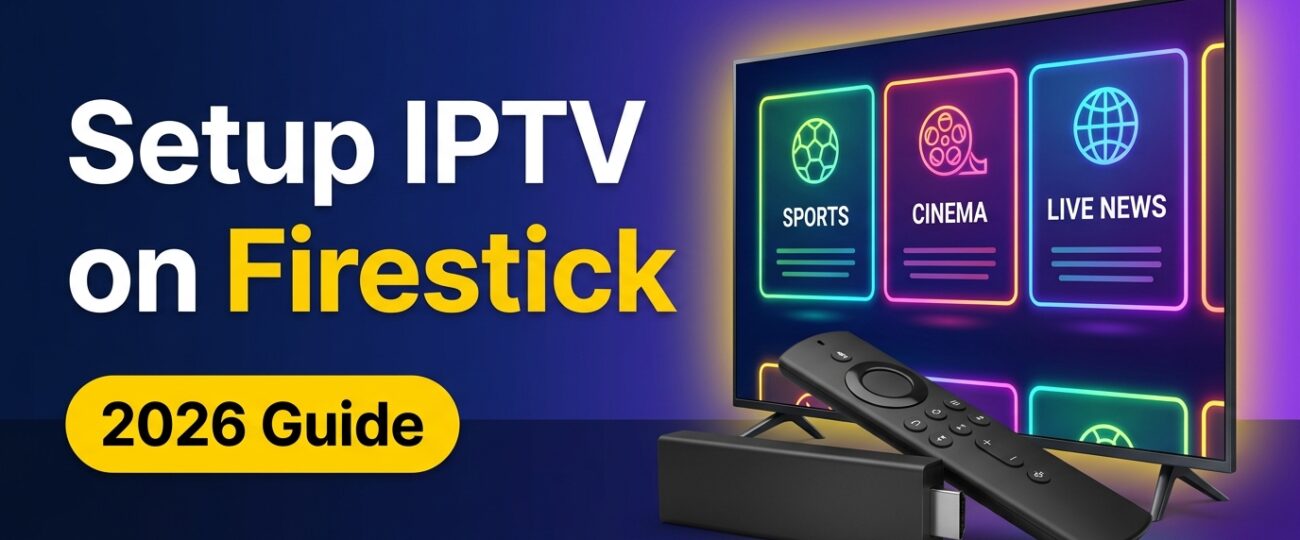
Amazon’s Fire TV Stick is one of the cheapest and most popular ways to turn any TV into a full IPTV streaming device. It’s small, fast, and works with every major IPTV player. The only catch? The best IPTV apps aren’t in the Amazon Appstore, so you need to know a few tricks to get them running.
In this guide you’ll learn exactly how to setup IPTV on Firestick in 2026, from enabling developer options to installing IPTV Smarters Pro and TiviMate, logging in with your M3U link or Xtream Codes API, and tuning your device so streams never buffer. The whole process takes about 10 minutes, and no technical experience is needed.
Before you setup IPTV on Firestick, make sure you have the following ready:
Because IPTV players are installed from outside the Amazon Appstore, you first need to enable developer options and allow apps from unknown sources.
On newer Fire OS versions, Developer Options is hidden by default. Here’s how to unlock it:
Your Firestick is now ready to install IPTV players.
IPTV Smarters Pro is the most popular free IPTV player. It has a clean interface with separate sections for Live TV, Movies, Series and Catch-up, and it supports both M3U and Xtream Codes logins.
Tip: To find the app quickly, hold the Home button on your remote, choose Apps, highlight IPTV Smarters, press the Options (☰) button and select Move to front.
TiviMate is the favorite of many IPTV users thanks to its cable-TV-style program guide (EPG), fast channel switching, favorites, recording and multi-playlist support. The basic app is free; TiviMate Premium unlocks advanced features for a small yearly fee.
Activating TiviMate Premium: Premium is purchased through the TiviMate Companion app on an Android phone. After subscribing, open TiviMate on your Firestick, go to Settings > Premium > Sign in and log in with the same account.
Your IPTV provider will give you one (or both) of two login methods. Xtream Codes API is recommended when available, because it loads channels, movies, series and EPG automatically and is easier to type on a remote.
In IPTV Smarters Pro:
In TiviMate:
In IPTV Smarters Pro:
In TiviMate:
Typing long links tip: Install the free Amazon Fire TV app on your phone and use its keyboard to paste long URLs, or ask your provider for a short link.
Buffering is usually caused by your network or device, not the IPTV service itself. Follow these proven tips for smooth playback:
Wi-Fi interference is the number one cause of buffering. Connect your Firestick to the 5 GHz band of your router, or use an Amazon Ethernet adapter for a wired connection. Moving your router closer to the TV also helps.
Install a free speed test app (such as Analiti or Internet Speed Test) on your Firestick. Aim for at least 10 Mbps for HD and 25 Mbps for 4K. If your speed is lower, restart your router or contact your internet provider.
Go to Settings > Applications > Manage Installed Applications, select your IPTV app, and click Clear cache. Do not choose Clear data unless you want to log in again.
Firesticks have limited storage. Uninstall apps you don’t use, and turn off Collect App Usage Data and Interest-based Ads under Settings > Preferences > Privacy Settings to free up resources.
In IPTV Smarters, go to Settings > Player Selection and try switching between the Native Player and VLC Player. In TiviMate, try changing the Playback > Player and buffer size settings.
Some internet providers slow down video traffic during peak hours. A fast VPN with nearby servers can bypass throttling and also protects your privacy.
A simple restart clears memory and fixes many playback issues. Go to Settings > My Fire TV > Restart, or hold Select + Play/Pause on your remote for 5 seconds.
Even the best setup can’t fix an overloaded server. A quality provider with anti-freeze technology and load-balanced servers makes the biggest difference of all.
Try StreamingIPTV Free for 24 Hours
27,000+ live channels, sports, PPV and 4K movies with anti-freeze technology. Works perfectly with IPTV Smarters Pro and TiviMate on Firestick. Instant activation and 24/7 support.
IPTV Smarters Pro is completely free and great for movies and series. TiviMate offers a better live TV guide, recording and faster channel surfing, making it ideal if you mostly watch live channels. Many users install both.
A VPN isn’t required, but it’s recommended if your internet provider throttles streaming or if you want extra privacy.
Amazon hides it on newer Fire OS versions. Go to Settings > My Fire TV > About and click your device name 7 times to unlock it.
That depends on your plan. Most subscriptions allow one active stream at a time, so check your plan details or choose a multi-connection package if you want to watch on several TVs at once.
Now you know exactly how to setup IPTV on Firestick: install Downloader, enable developer options, sideload IPTV Smarters Pro or TiviMate, and log in with your Xtream Codes or M3U details. Add the anti-buffering tips above and you’ll enjoy smooth, high-quality streaming on any TV.
Ready to start watching? Grab your 24-hour StreamingIPTV trial and get set up in minutes. If you have any questions along the way, our 24/7 support team is always happy to help. You can also browse our full channel list.



We are offering reliable access to live TV channels, movies, series, and sports content. We deliver a smooth, high-quality streaming experience across multiple devices.










© 2026 Streamingptv Subscription. All rights reserved.